
Checklists in Slide Over.
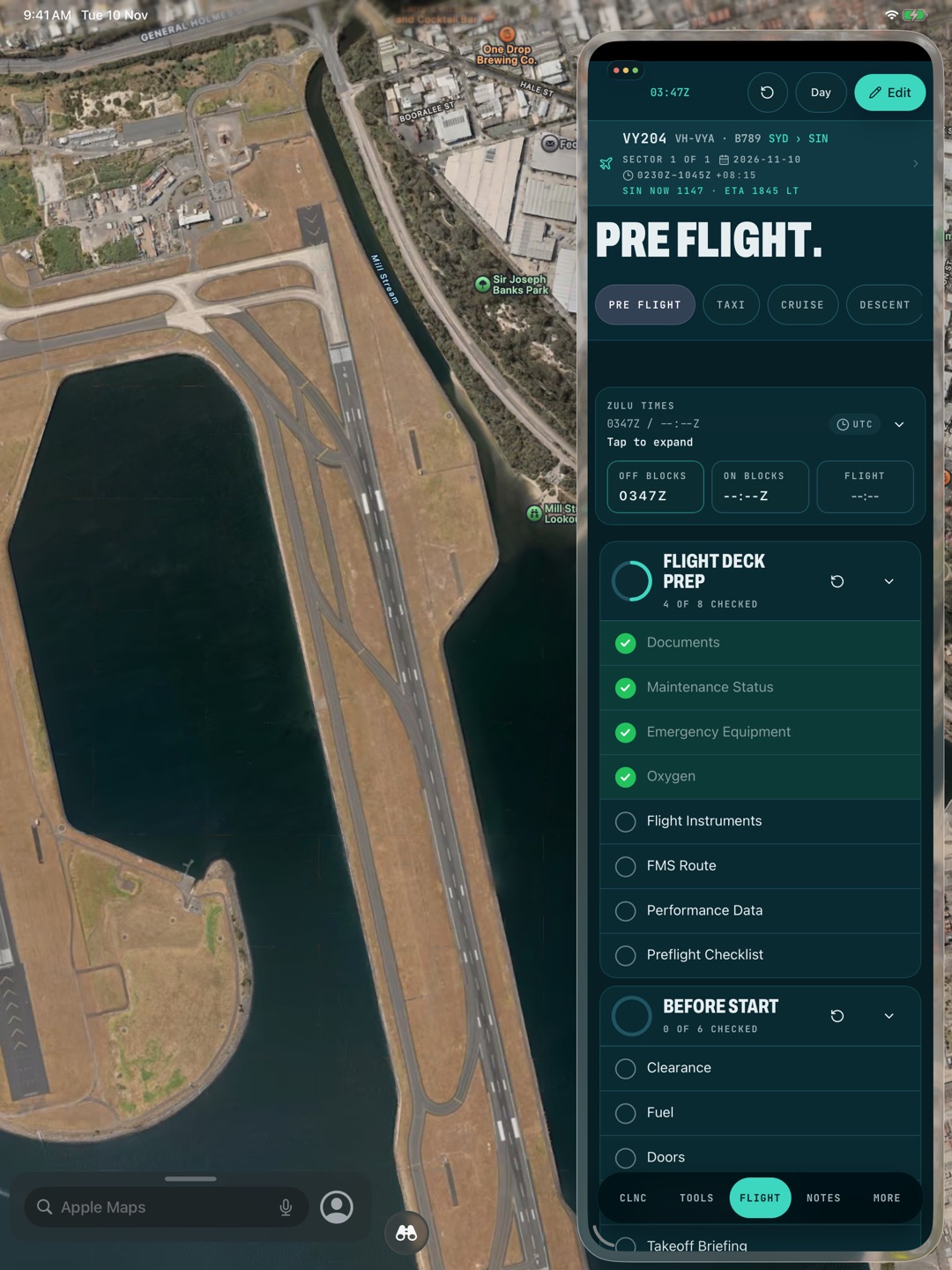
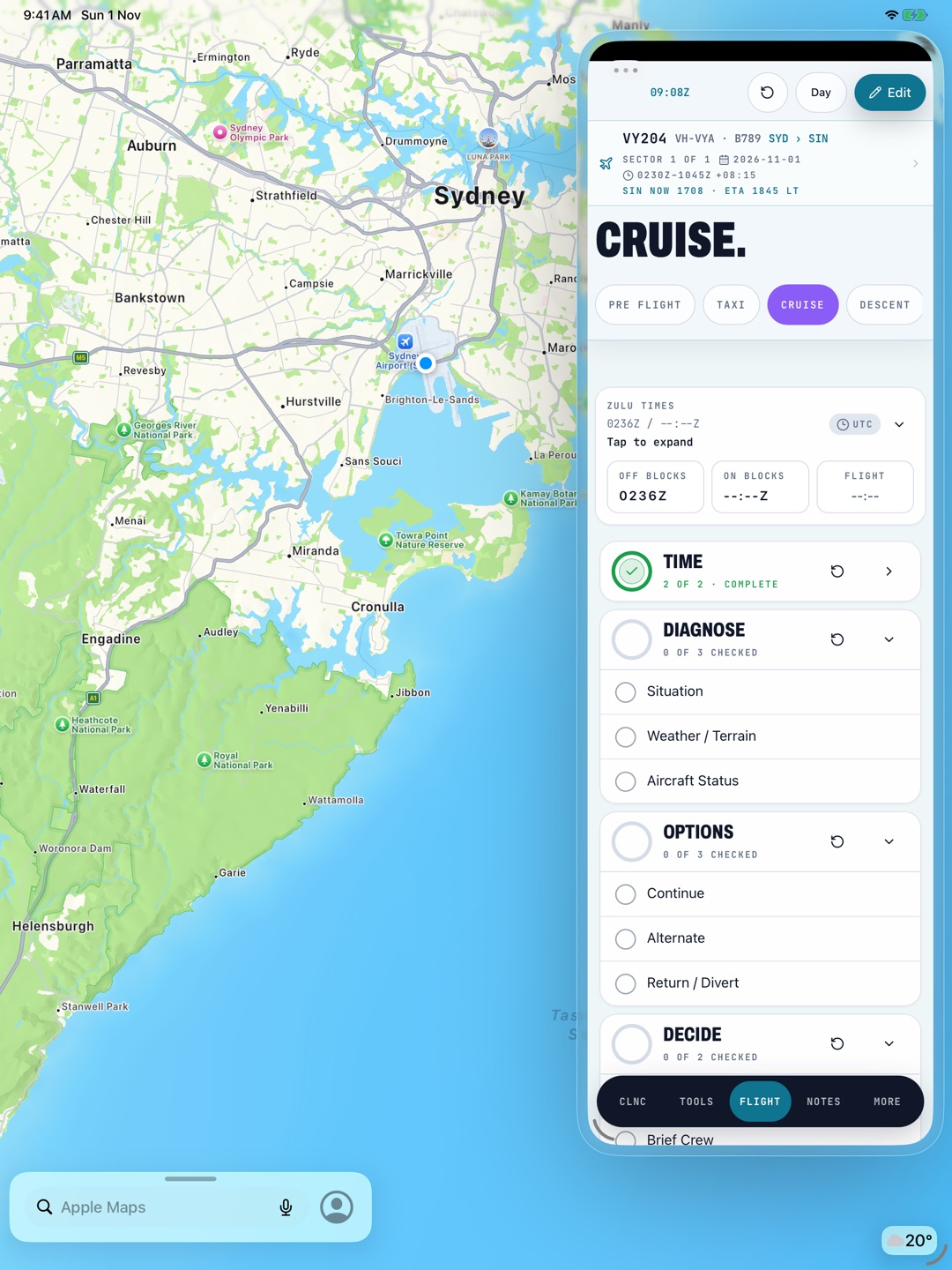
CrewCheck is a checklist app for pilots built to run in Slide Over on iPad. It floats over your EFB, charts or maps, so you can tick through a phase of flight and swipe it away without closing the app underneath.
Why Slide Over
On a flight deck the EFB stays on screen. Switching apps to find a checklist means losing your place in both. In Slide Over the checklist is a narrow panel at the side of the screen: swipe it in, tick the items, swipe it out. Your place in the checklist is kept, and the ring shows how far through you are, like "3 of 8 checked".
What fits in the panel
- Checklists by phasePre flight to after landing
- Off and on blocksZulu
- ClearancesControl pad
- Crew restSplit for the crew
- Scratch padApple Pencil
A floating tab bar keeps the tools and notes a tap from the checklist. CrewCheck also runs full screen, in Split View, and on iPhone.
Setting it up
- Open your EFB, chart or map app full screen.
- Bring CrewCheck in from the Dock as a Slide Over window. The exact gesture depends on your iPadOS version, and Apple's iPad User Guide covers it.
- Swipe the panel off the edge when you're done with it, and back when you need the next phase.
Questions
Can I use a checklist app alongside ForeFlight or another EFB?
On iPad, yes. CrewCheck runs in Slide Over or Split View next to any other app, including your EFB, charts or maps, where your operator permits it.
Does CrewCheck need a signal in Slide Over?
No. CrewCheck works fully offline, in flight mode, from the first launch.
Does it work on iPhone?
Yes, full screen. Slide Over is an iPad feature.
Your operator's approved checklists and SOPs always come first. A personal checklist supports them. It never replaces a normal checklist, the QRH, or anything your operator requires.